Your Claude starter map: the only 5 buttons that matter.
Claude can look busy enough to scare you off on day one. It isn't. Here's every button that matters, labelled, so you never feel lost again.
Liked this? New guides land here first. No spam, ever.
Claude looks busier than it is. On day one you only need five things: the message box, the plus button, the model name, new chat, and the sidebar. Learn those and the screen stops being intimidating. Everything else can wait until you actually want it. Here's each one, what it does, and a prompt to try the second you find it.
Why the screen scares people off.
Here's what I see all the time. A woman opens Claude for the first time, sees a screen with menus and buttons and a model name she doesn't recognise, decides it looks like something built for engineers, and closes the tab. She doesn't come back. Not because Claude is hard, but because nobody told her which bits to ignore.
So let me do that now. You do not need to understand the whole dashboard to get real value today. Five things. That's the whole map. Think of this page as the labelled version of your screen, the thing you keep open beside you the first week until it all goes muscle memory.
1. The message box.
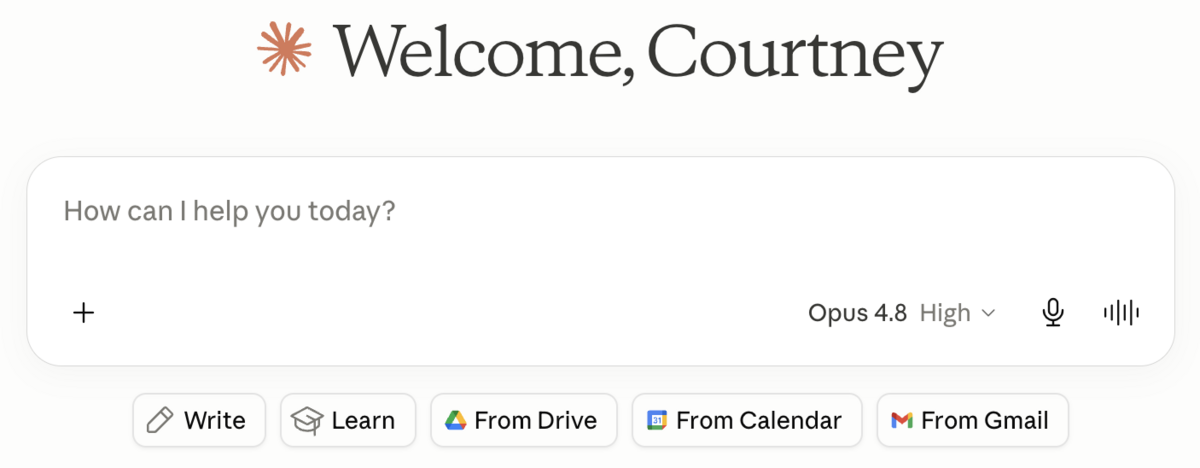
Bottom of the screen. The long bar where your cursor sits. This is where you type, and it's where about ninety percent of everything happens. If you can send a text message, you already know how to use it. Type a question, hit enter, read the answer, type the next thing. That back-and-forth is the entire job.
The trick most people miss: you don't have to get your whole request out in one perfect message. Talk to it the way you'd talk to a clever assistant sitting across the desk. Say a bit, see what comes back, then refine. The message box is a conversation, not a search bar.
I'm brand new to Claude and I want to learn by doing. Ask me three quick questions about my work, then suggest three things you could help me with this week based on my answers. Keep it plain and friendly, no jargon.
2. The plus button.
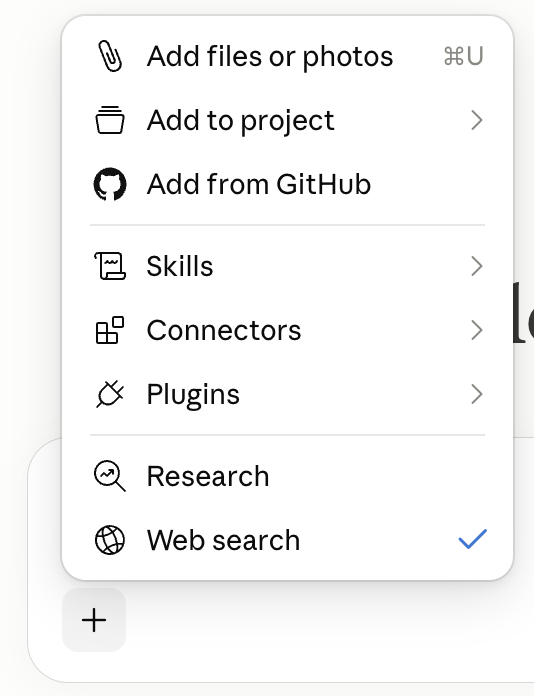
Look just to the side of the message box for a small +. Tap it and a little menu opens up, and this is where Claude stops being only a chat. From here you can upload a photo or screenshot, add a PDF or a document, and reach the extras like skills and connectors. Your whole toolkit hides behind that one tiny button.
This is the part that surprises people. You can hand Claude a screenshot of a confusing email, a PDF of a contract, a photo of your handwritten notes, and ask it to read, explain or rewrite. You're not limited to what you can type. You can show it things.
[Tap the + and upload a screenshot or document first, then send this:] Read what I've just uploaded and tell me the three most important things in it in plain English. Then ask me what I want to do with it.
3. The model name.
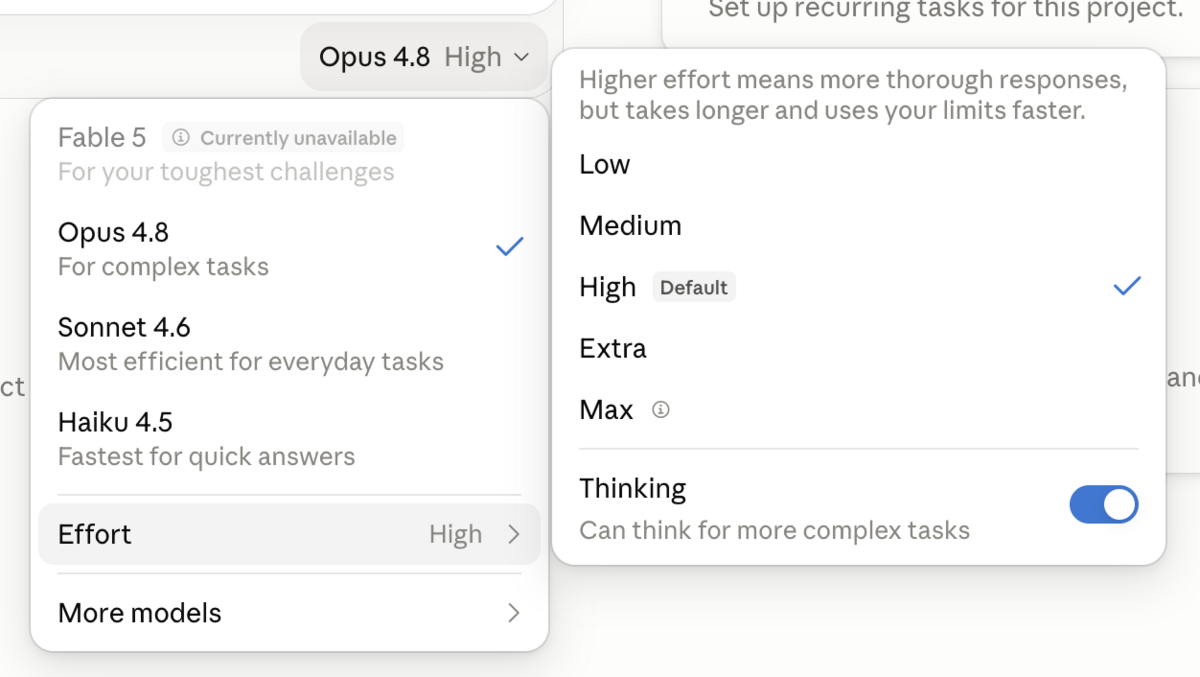
Up near the top you'll see a word or two telling you which version of Claude you're using. It looks like decoration. It's actually a menu. There's a more powerful Claude for hard thinking, and a faster, lighter one for everyday jobs. You can switch between them anytime, even halfway through a chat.
You don't need to fuss over this yet. The everyday model handles most things beautifully. Just know the menu is there, because it matters more once you're on a plan with limits. I've given the model picker its own guide later in this series, so for now, simply notice it exists.
In one short paragraph, explain the difference between your more powerful model and your faster everyday model, and give me a simple rule for picking which one to use. Assume I'm not technical.
4. New chat.
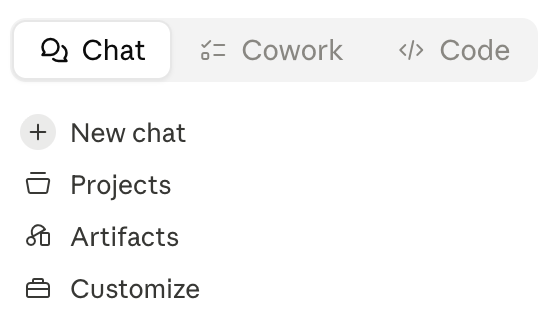
Top of the sidebar, usually marked with a little pencil or a plus and the words "new chat". Tap it whenever you change topic. Here's why it matters: Claude remembers everything in the current conversation, which is brilliant when you're building on one thing, and messy when you suddenly switch to something unrelated.
So if you've spent an hour on your launch emails and now you want help planning dinner, start a new chat. You keep the launch thread clean, and dinner doesn't get tangled up in marketing context. A fresh chat is just a clean desk.
[Start a fresh chat, then send this:] I want to use this chat for one topic only: [name the topic, e.g. planning my week]. Help me stay focused on just that. Where should we start?
5. The sidebar.
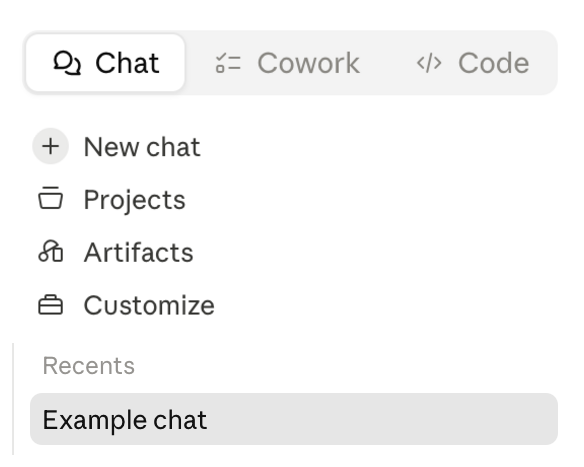
Down the left side, every chat you've ever had is saved and waiting. If you can't see it, tap the little stack of lines (the menu icon) to open or hide it. Nothing you do in Claude disappears. That late-night chat where you finally cracked your bio? Still there. Scroll back and pick up exactly where you left off.
This is the bit that quietly builds confidence. You're not starting from scratch every time. Your work piles up into a library you can return to, search, and reuse. Give your chats a quick rename when one turns out useful, and future-you will find it in seconds.
Suggest a short, clear title for this conversation so I can find it again later in my sidebar. Then tell me how renaming chats helps me stay organised over time.
Bonus: Projects.
One more thing worth pointing at, even though you don't need it on day one. In the sidebar you'll spot Projects. Think of them as folders for your work, one for content, one for client stuff, one for a big launch. Each keeps its own files and context so things don't bleed into each other.
I go deep on Projects later in this series, so don't worry about setting one up yet. Just know it's there for when you're ready to give Claude a permanent home for a particular kind of work.
Don't try to learn all five at once. For your first three days, only use the message box. Just chat. Once that feels normal, add the plus button. The screen gets less scary the moment you stop treating it as one big thing to master and start treating it as five small things you meet one at a time.
One last thing.
The reason Claude feels overwhelming is that it looks like software. It behaves more like a teammate you talk to in plain English. The buttons aren't a control panel you have to decode. They're just the edges of the room where the conversation happens.
Five things. The message box, the plus button, the model name, new chat, the sidebar. Find each one once, send it a single message, and the panic is gone. The rest you'll pick up when you actually need it, which is the only time worth learning anything.